


The key a song was recorded in suited the person who sang it, which may not be you. If a tenor recorded it and you're a baritone, the chorus sits just out of reach. If a soprano recorded it and you sing alto, the top notes either won't come or come out shouted. More practice doesn't fix that. A different key does, once you know how far to move. The karaoke maker gives you a backing track to practise with, and its practice screen has a panel called "Your key" that works that distance out: it puts the song's melody next to your range and tells you how many semitones to move it.
What decides whether a key suits you
Knowing a song is in G tells you nothing about whether you can sing it. What matters is the lowest and highest notes the voice has to hit, and where the melody spends most of its time. Two songs in G can feel completely different: one lives in the middle of your voice, the other drags you to your limit every chorus.
Those notes are in the recording, so all the panel needs from you is your voice type. It gets the melody from the vocal track itself.
Where the panel is
Upload a recording you have the right to use to the karaoke maker (the form asks you to confirm that by ticking "I have the right to use this recording"). When the separation finishes, the practice screen opens by itself, with the song in four stems and the voice muted.
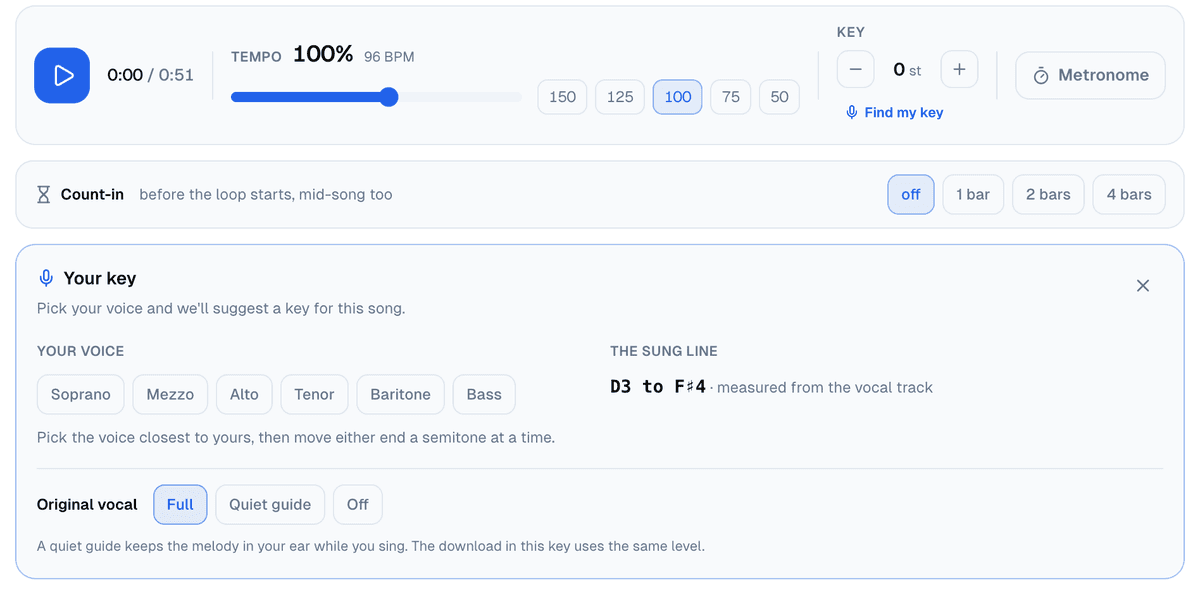
The "Find my key" button under the key control opens "Your key" below the playback controls. It's there on any separation with a vocal track.
Your voice: six starting points
There are six voice types to start from, each with a comfortable range: roughly what an untrained voice of that type sings without straining.
- Soprano: C4 to G5
- Mezzo: A3 to E5
- Alto: F3 to C5
- Tenor: C3 to G4
- Baritone: A2 to E4
- Bass: E2 to C4
C4 is middle C. Pick the type closest to yours, then adjust both ends, "Lowest comfortable note" and "Highest comfortable note". Each has minus and plus buttons that move it a semitone at a time, and a button that plays the note on a piano. Play the note and sing it back; if it comes out strained or breathy, move that end a semitone inwards and try again. The panel won't let the two ends get closer than a fifth.
Whatever you set stays in this browser for the next song, signed in or not: the range belongs to whoever sings into this device, so it isn't saved to an account.
The melody, measured in your browser
On the right, under "The sung line", the panel writes the melody's lowest and highest notes and where it got them. If you've already had the server read the tune with "Read the tune" (that needs an account) and it read it off the voice, the panel uses that. Otherwise it listens to the vocal track in your own browser, with the same pitch detector the site's tuner uses, and shows its progress as it goes ("Listening to the vocal track…" and a percentage). That measurement costs no minutes and needs no account.
Not every note makes it in. A note has to sound for at least a quarter of a second, adding up every time it appears in the song, to count towards the range, so a breath or a bit of the band bleeding into the vocal track won't stretch your line. And if the track holds less than four seconds of singing, the panel says so ("There's no singing in this vocal track to measure") rather than making a range up.
The suggestion, and why that one
With a voice picked and the melody measured, the panel suggests a move. In the screenshot the line runs from D3 to F♯4 and the voice is a baritone, A2 to E4, so the F♯4 sticks out over the top. The suggestion is "Take it down 2 semitones", from G to F, and the panel spells out the result: "The line then runs C3 to E4, inside your range."
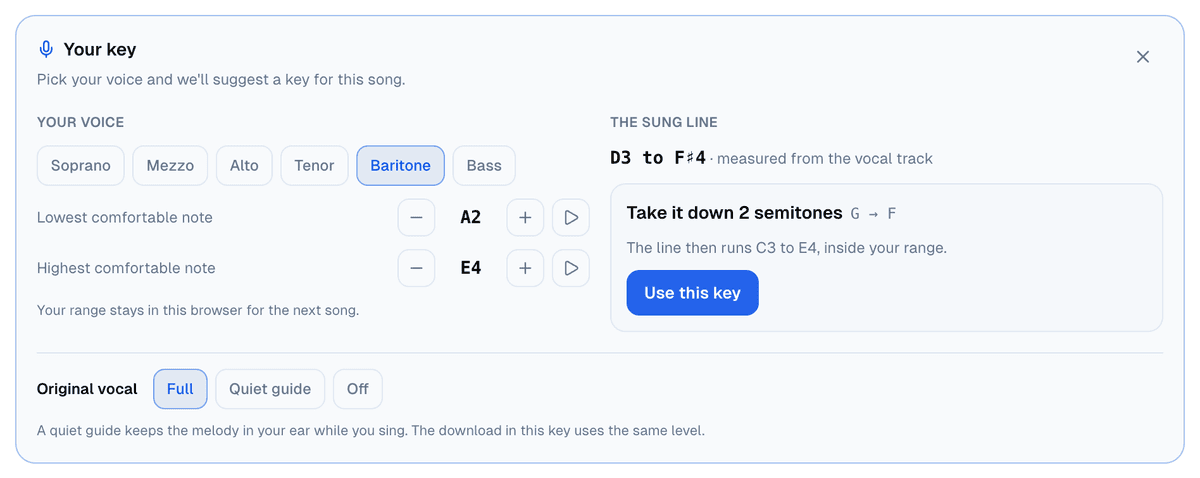
The rules behind it are few:
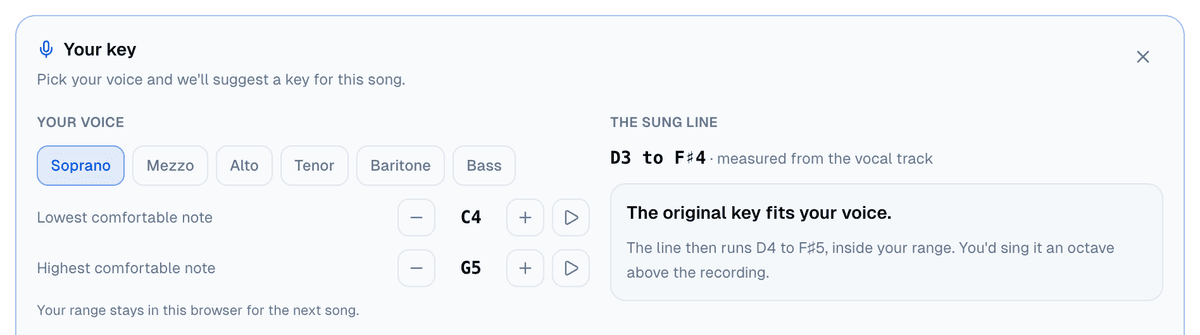
- If the original key fits, it wins. The key you already know, when it suits you, is the best answer there is, and the panel says so plainly: "The original key fits your voice."
- If it doesn't, the panel looks at the keys within six semitones either way that do fit, and picks the one that puts the melody closest to the middle of your range. Every semitone of movement counts against a key, because transposing the backing costs some of its sound. So it doesn't just take the smallest move, which would leave you grazing your top note, or the most central one at any price, which would shift the backing six semitones to gain one.
- If nothing fits, because the melody spans more than your range, it suggests the closest key and tells you how many semitones fall outside at the top or the bottom. Each semitone over the top counts half again as much as one under the bottom: you can sing a low note softly, but a high one either comes out or it doesn't.
The octave is free
A tenor sings a soprano's song an octave down without being asked, and a soprano does the same upwards with a baritone's. The panel works the same way: changing octave costs nothing, and only the key control's move counts. That's also why the key control stops at six semitones either way, since with the octave free, six up or six down reaches every one of the twelve keys. Same song, soprano voice, and the answer is that the original key fits, sung an octave above the recording.
Practising in the new key
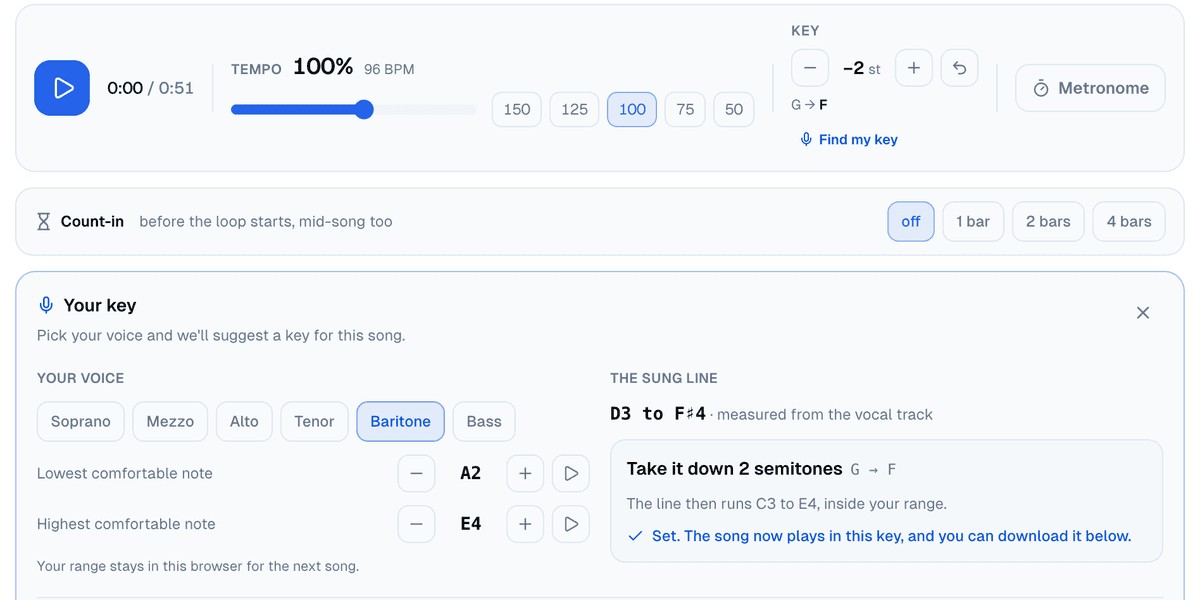
Press "Use this key" and the key control moves by itself: it reads −2 st, with G → F beside it. The panel confirms it with "Set. The song now plays in this key, and you can download it below."
The whole song plays in the new key, and a change is heard as soon as you make it, even halfway through. A looped chorus is still a good place to start, since it's usually the highest part: drag along the ruler above the waves, or click the chorus in the "Sections" row once the sections show up. A drag on the wave itself moves through the song. If a phrase still fights you, slow it down as well: the tempo control runs from 40% to 150% without changing the pitch.
The original vocal: full, as a guide, or off
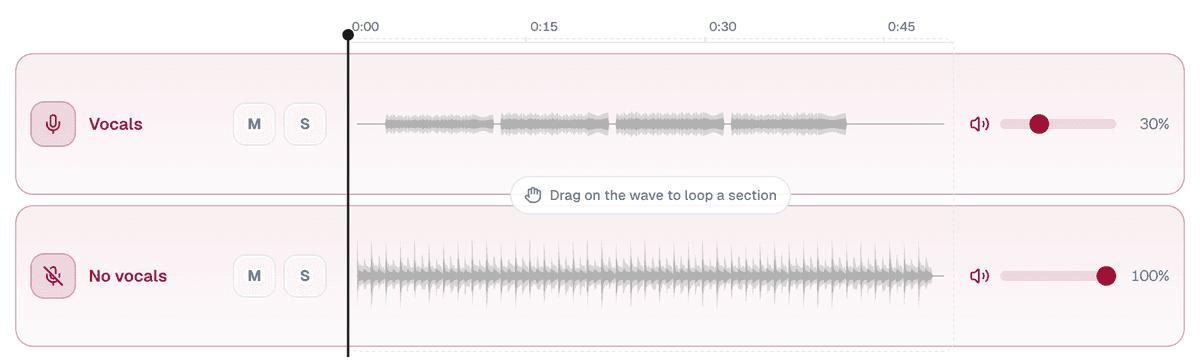
Under the suggestion sits "Original vocal", with three levels. "Full" plays it at 100%, "Quiet guide" drops it to 30% and "Off" mutes it. The quiet guide is for when you're still learning the song: the melody stays there under the backing so you don't lose your way, but yours is the voice on top. And since the original vocal is transposed along with everything else, the guide sings in your key, not the record's.
The panel has no volume of its own: it moves the fader on the "Vocals" lane, which is why the lanes, practice mode and the download all hear the same thing. If another track was soloed, asking for the voice clears that solo, which would otherwise keep it silent.
Take it home in your key
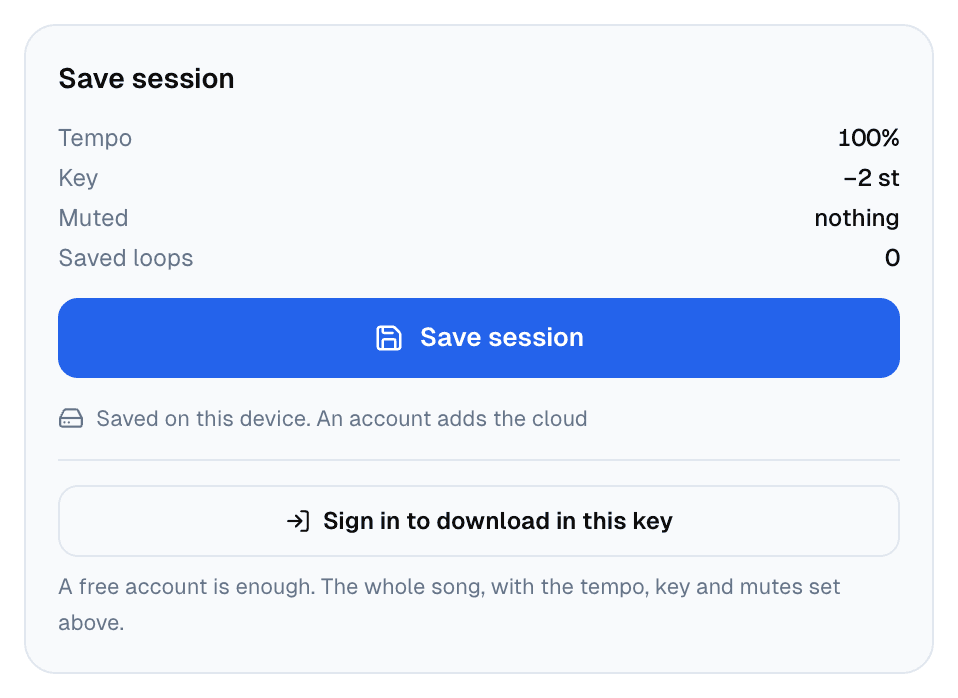
The "Save session" card has a "Download in this key" button. It renders the whole song to a file, with the tempo, key and mutes you have set, so if you left the vocal as a quiet guide, the file keeps that guide. It needs an account, but a free one is enough: it gets you a 192 kbps MP3, and a lossless WAV comes with Pro. The file name carries the change, something like "My song (-2 st, 100%).mp3", so versions for different voices don't get mixed up in a folder.
A long song can run a phone out of memory while it renders; a computer is the safer bet.
The lead sheet, in the same key
Once the server has marked the sections and chords, which it does by itself after the separation, the lead sheet button follows the key: it reads "Lead sheet in F" and sends the chords and the tune already transposed. They arrive as a draft, in lighter ink, so you can correct whatever the server misheard. Whoever plays for you then plays in the key you sing in, not the recording's.
An order that works
- Pick your voice type and check both ends against the piano.
- Take the suggestion and loop the highest part of the song.
- Sing with the quiet guide until the melody sits right, then turn it off.
- Download the song in your key to rehearse away from the screen.
Nobody says you have to sing it in the record's key. Upload a song you have the right to use to the karaoke maker, open "Find my key" on the practice screen and let the panel tell you how far to move it.
Cover photo: studio microphone with headphones and a pop filter, by WillSpirit, public domain (CC0), via Wikimedia Commons, cropped and resized.


.jpg)