


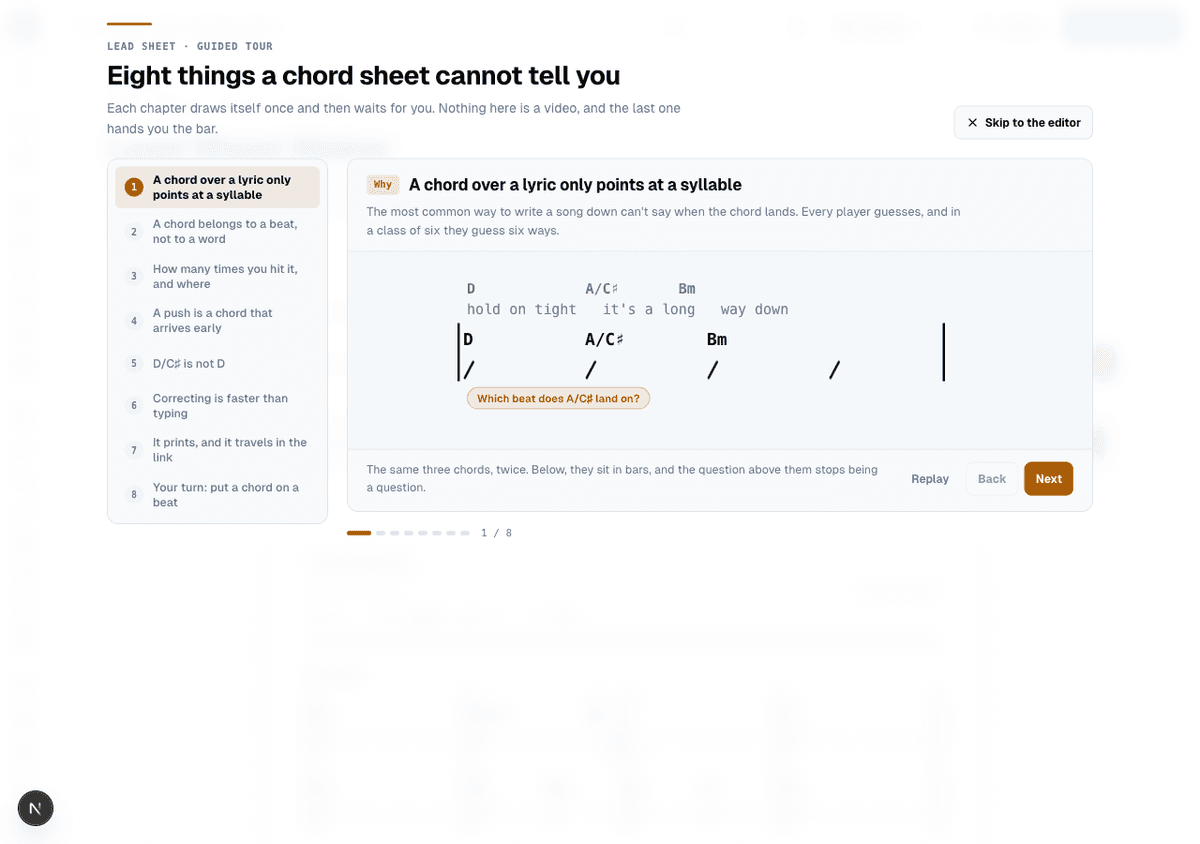
A chord written over a lyric only points at a syllable. It doesn't say which beat the chord lands on, how many times the band hits it, or what happens when a chord arrives early. The Lead Sheet Maker writes down the part every chord-and-lyric site leaves out: bars, rhythm, slash chords, pushed chords that tie over the barline, repeats, and first and second endings. There's no account and no database behind it. The chart lives in the address bar, so sending it is sending a link, and printing it is printing the same page you're looking at.
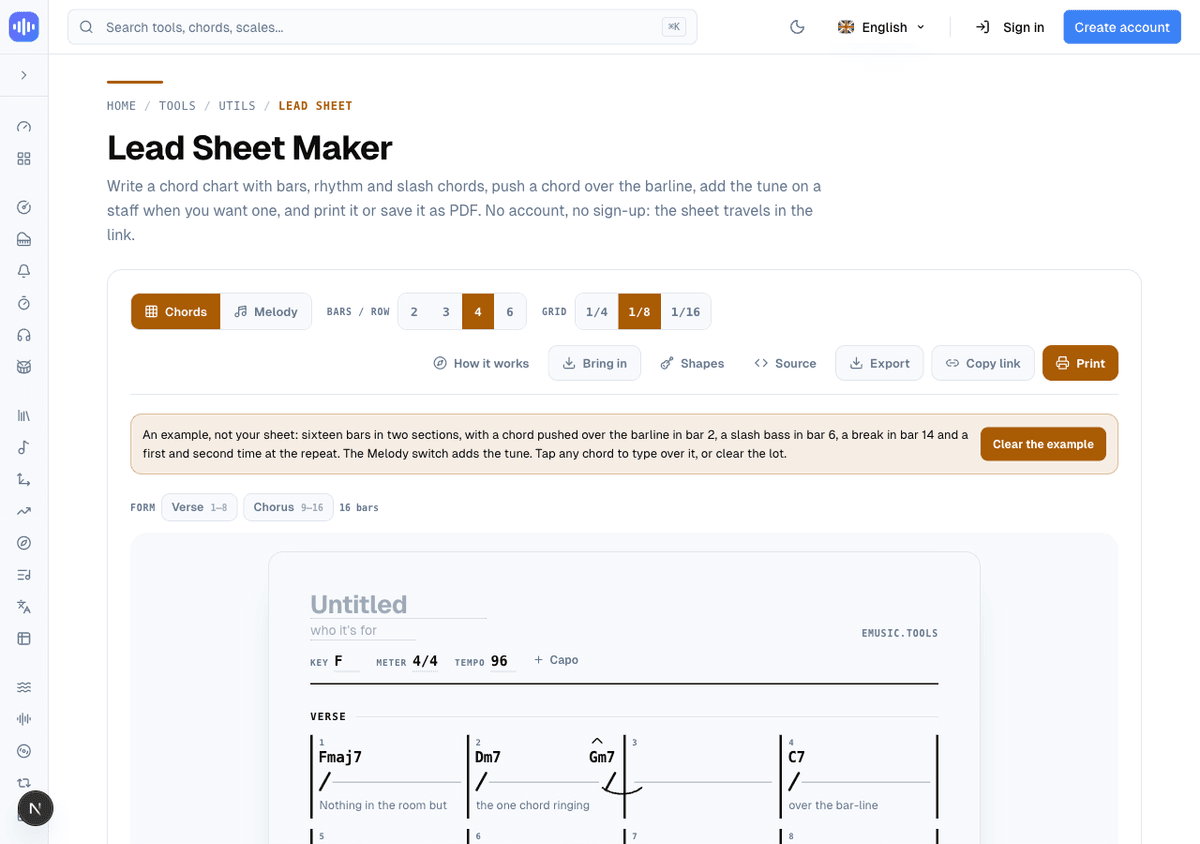
The page opens with an example already on it rather than a blank page: sixteen bars in two named sections, a chord pushed over the barline in bar 2, a slash bass in bar 6, a break partway through, and a first and second time where the chorus repeats. A "Form" strip above the paper names the sections in the order they're played, says what that comes to in bars, and jumps the page to one when you click it. Tap "Clear the example" and all of it is gone, ready for a blank sheet.
Click a chord, type over it
Every chord on the chart is a button. Click one and an editor opens right where it stands, at the same size and in the same font, so nothing else on the page moves while you correct it. It shows the bar and beat you're on, a Push toggle, a field for a slash bass note, and a row of quality chips (maj, m, 7, m7, maj7, sus4, dim, and further ones like m7♭5 and alt on a second row) so a chord change is one click rather than a retyped symbol.
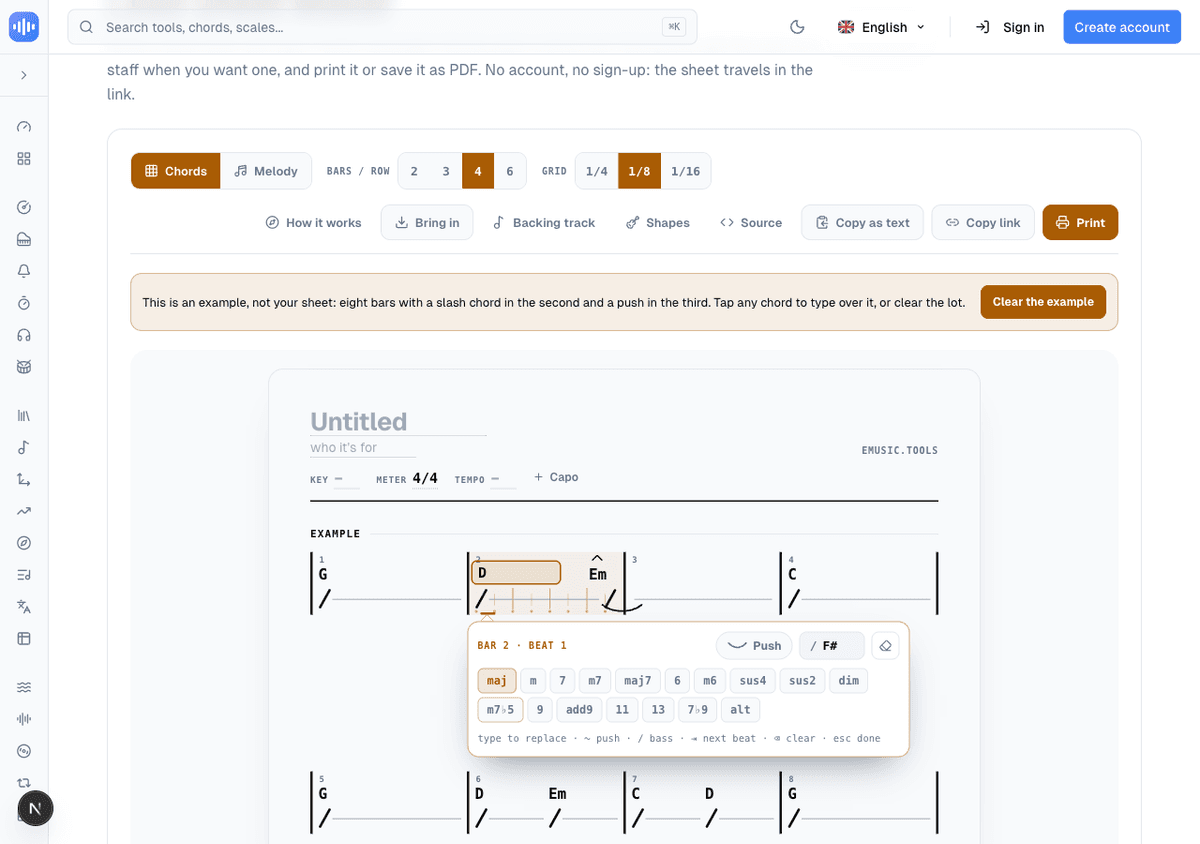
The keyboard does the rest: type to replace the chord outright, ~ pushes it, / starts the bass note, Tab moves to the next beat, Backspace clears the chord, and Escape closes the editor. That's the whole point of the tool, according to its own guided tour: correcting a chart is faster than typing one from scratch, which matters most in a lesson where the teacher is fixing what the class just played while everyone is still looking at the same bar.
Source: the chart as typed text
Every chart also exists as plain text, and the "Source" button opens it next to the paper, in sync both ways. Edit the text and the chart redraws; edit the chart and the text rewrites itself. A chord line looks like this:
| C . . . | Am7 . % . | F^ . . (C) | G7 . . >C |Each bar sits between two pipes, and each token is a beat (or an eighth, or a sixteenth: a bar reads at whatever resolution its own token count needs, so three tokens read as four beats with the last one left blank, not as a bar of triplets). Nine marks cover the rest, each sitting on one unshifted key or one shift, because the person typing this is usually correcting a chart mid-lesson with one hand:
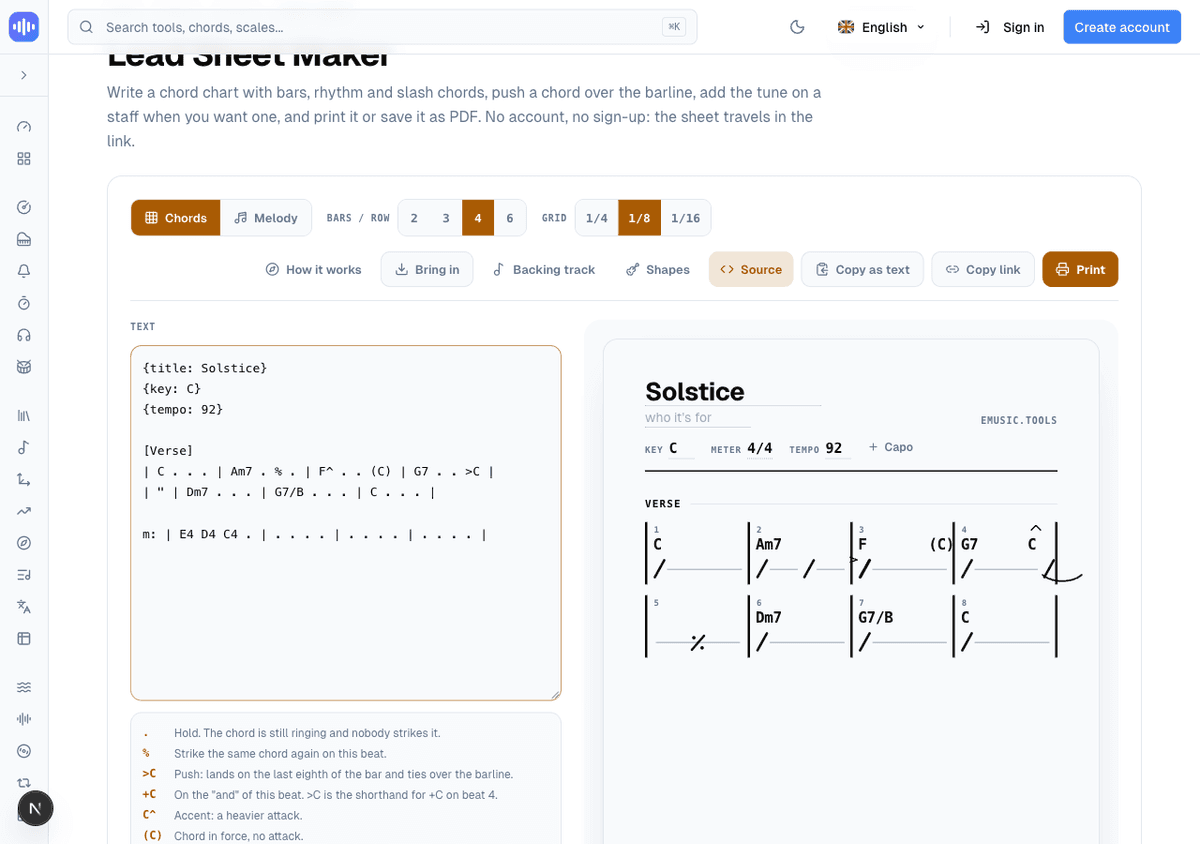
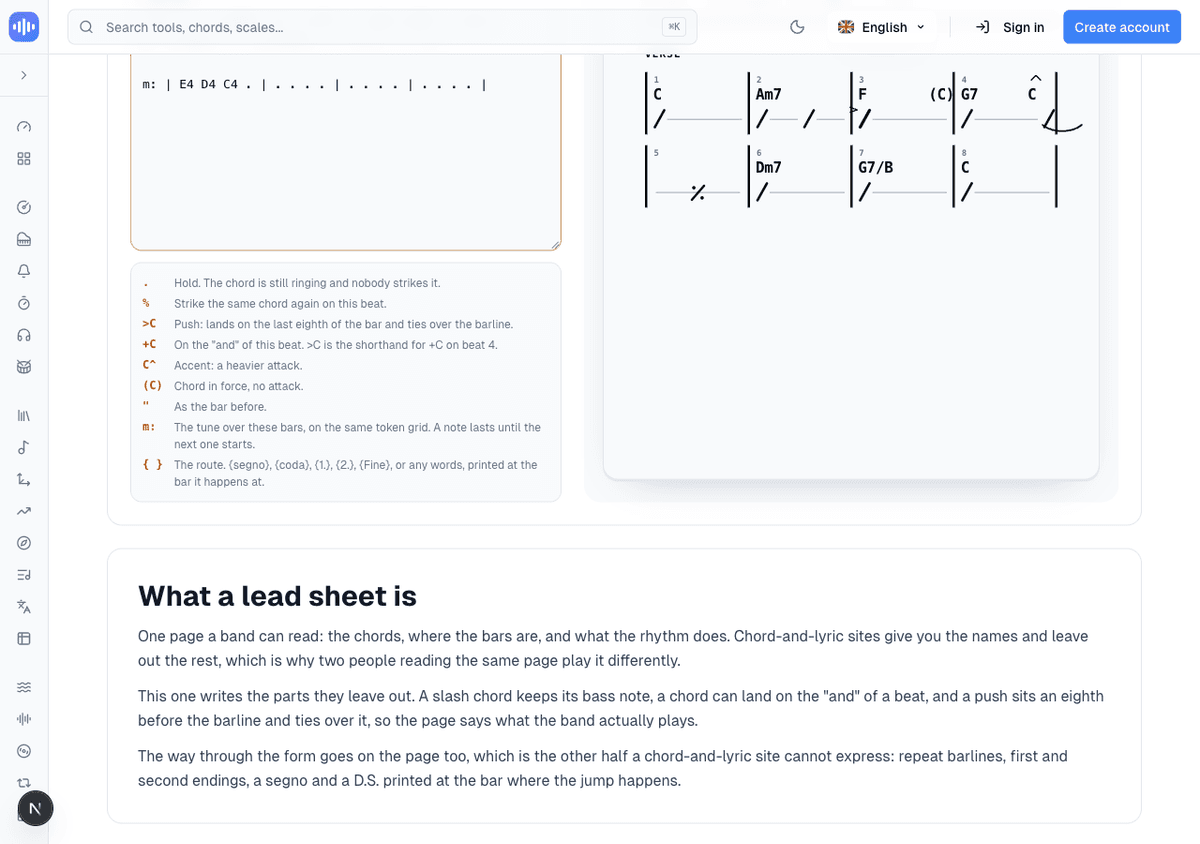
That worked example above reads: hold with a period, so C . . . is one attack held for the bar; strike the same chord again with %; push a chord onto the last eighth of the bar and tie it over the barline with >C (and land it on the "and" of any other beat with +C, since >C is really just the shorthand for +C on beat four); accent a heavier attack with a caret, as in F^; mark a chord that's still in force but not struck with parentheses, (C); and repeat the bar before exactly with a single ". A slash chord is just the symbol with its bass note after a slash, G7/B, and it keeps that bass note on the page rather than folding it into a plain G7 the way a chord-and-lyric site would. Underneath the chords, a line starting with m: carries the tune on the same token grid, one note per beat with no note values to pick, because a note lasts until the next one starts.
Hold and rest are opposite marks, and both need their own symbol: holding is what a bar does on its own once a chord is struck, so stopping the ring has to be written down to happen at all. z is that rest, the mark most typed notations already use, and N.C. is the same silence with its name printed on the page for a reader who wants it in words rather than a symbol. Past the marks themselves, a line under the box counts the chart back to you (how many sections, bars and chords it parsed to), since typing in text rather than on the paper hides the shape of what you just wrote, and a "Tidy up" button rewrites the whole pane from that same parsed chart, which is the fastest way to see exactly what the parser read from something pasted in from somewhere else.
When the text doesn't parse
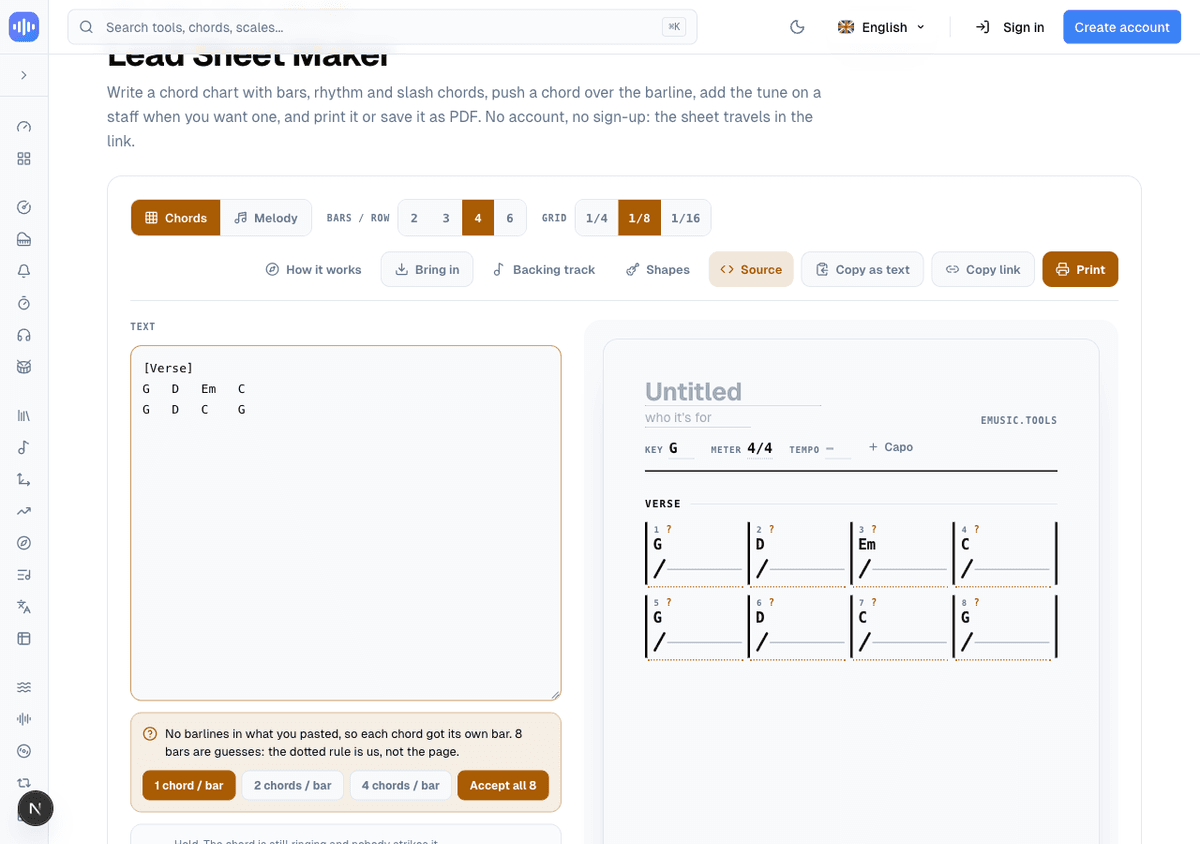
Paste a chord list with no bar lines in it, and the tool doesn't reject it. It gives each chord its own bar, marks every one of them with a dotted rule and a small "?" so a guess never passes itself off as something you actually typed, and offers to respace them at one, two, or four chords a bar once you tell it how the original was meant to read.
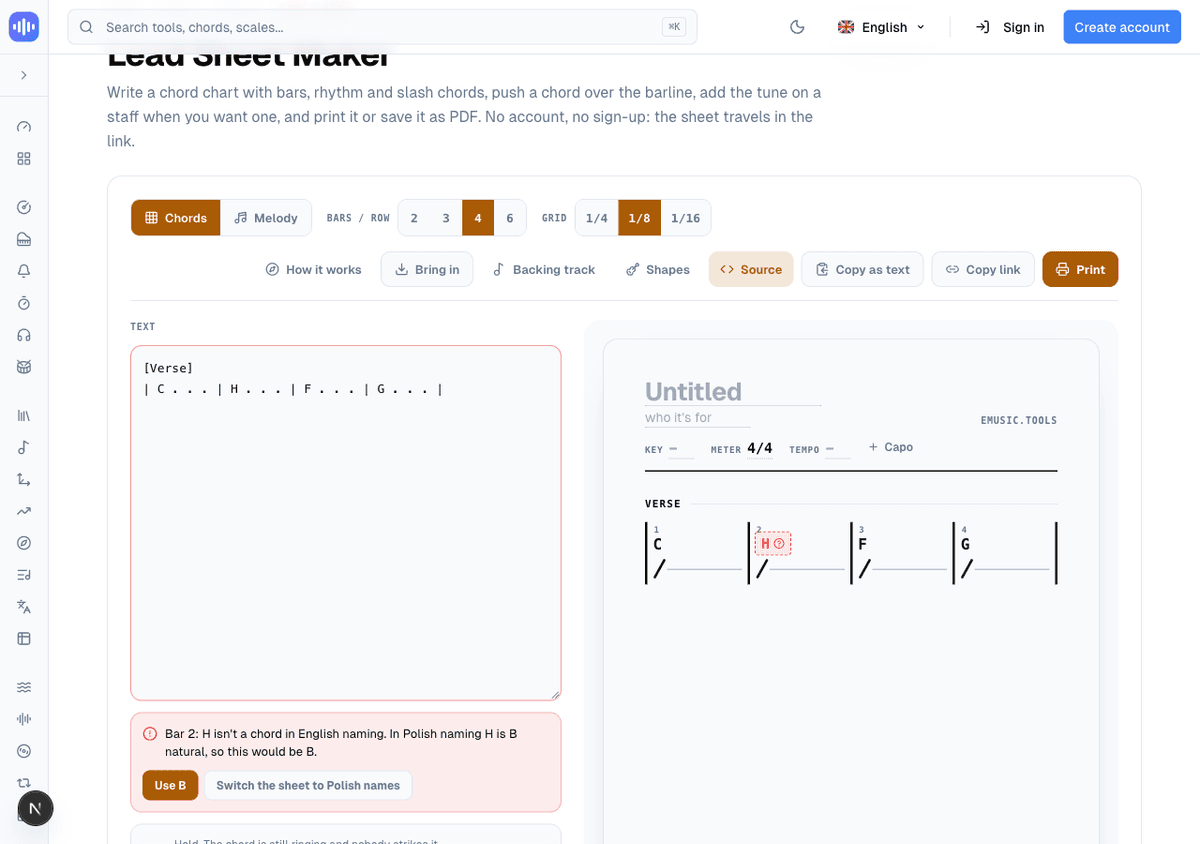
A token the parser can't read at all doesn't take the rest of the chart down with it. Only that one bar shows an error, with the bad token still sitting in the text so you can see exactly what went wrong. One case gets its own message: type an H, which is a B natural in Polish chord naming, and the tool recognizes it as a Polish reading and offers to swap it for B or switch the whole chart's naming system to Polish instead of just calling it invalid.
A full chart: sections, repeats, and endings
None of that is worth much without the other half of a chart, which is the road through the form. Sections get a name in square brackets, a repeated section can carry a "×2" tag, and repeat bar lines, first and second endings, and a printed Fine ride on the bars themselves in braces: {1.}, {2.}, {segno}, {coda}, {Fine}, or any words at all for a jump a menu of four presets would get wrong for the fifth song.
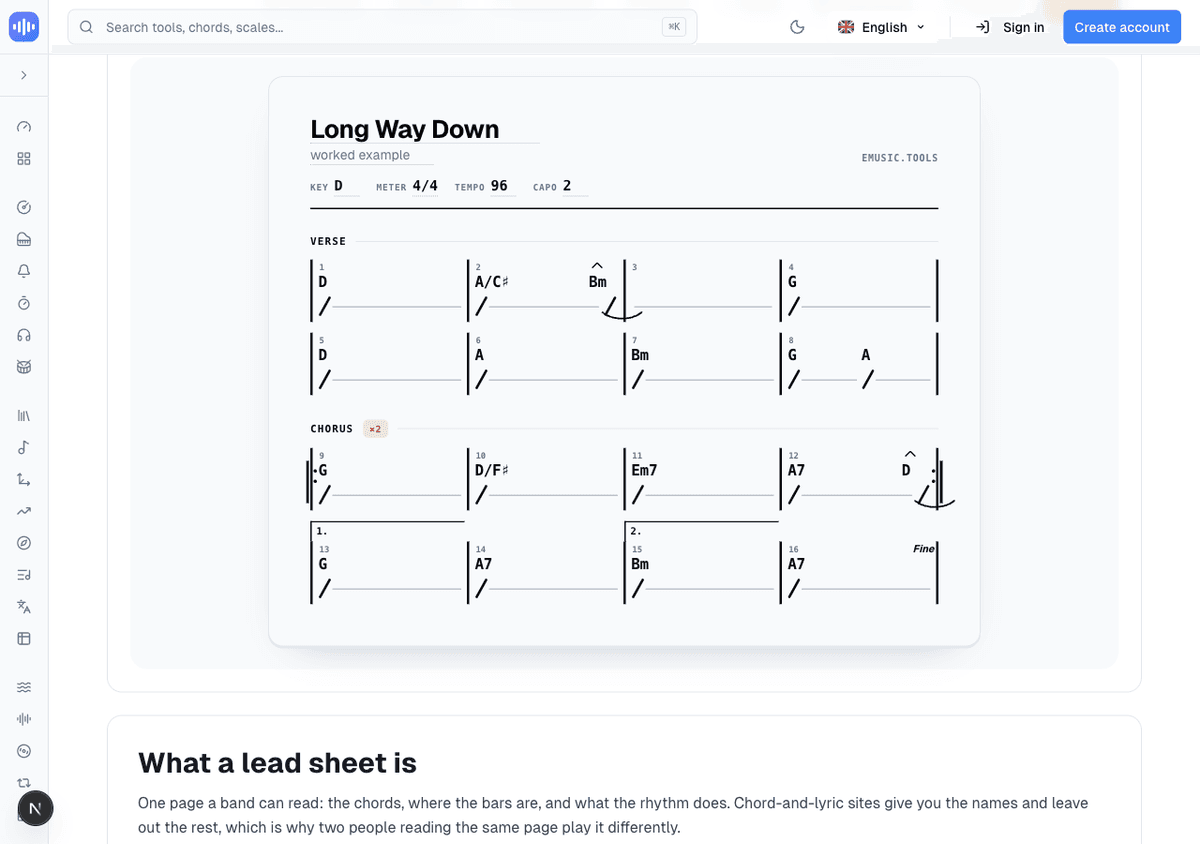
Put a title, an artist line, a key, a tempo, and a capo number in braces at the top of the text and they land in the header the same way. That's the whole song on one page: a verse, a chorus marked to repeat, a bass note kept where the band actually plays it, a push tied over the barline, and the two endings a band needs to know which bar to take on the way out. The strip above the paper follows those marks: it lists the sections in the order they're played and counts what that comes to. The Export menu will follow them too, so a MIDI file can carry the repeats instead of the page read top to bottom.
Writing the tune, and how to play it
Switch to Melody mode and a staff threads itself between the chord symbols and the rhythm line, over the same bars. Click anywhere on it and a note appears, no note value to choose, because like a chord it just lasts until the next one starts. Letters set the pitch by name, the arrow keys move it a step or a beat of the grid, and Shift with the arrows raises or lowers it by a semitone.
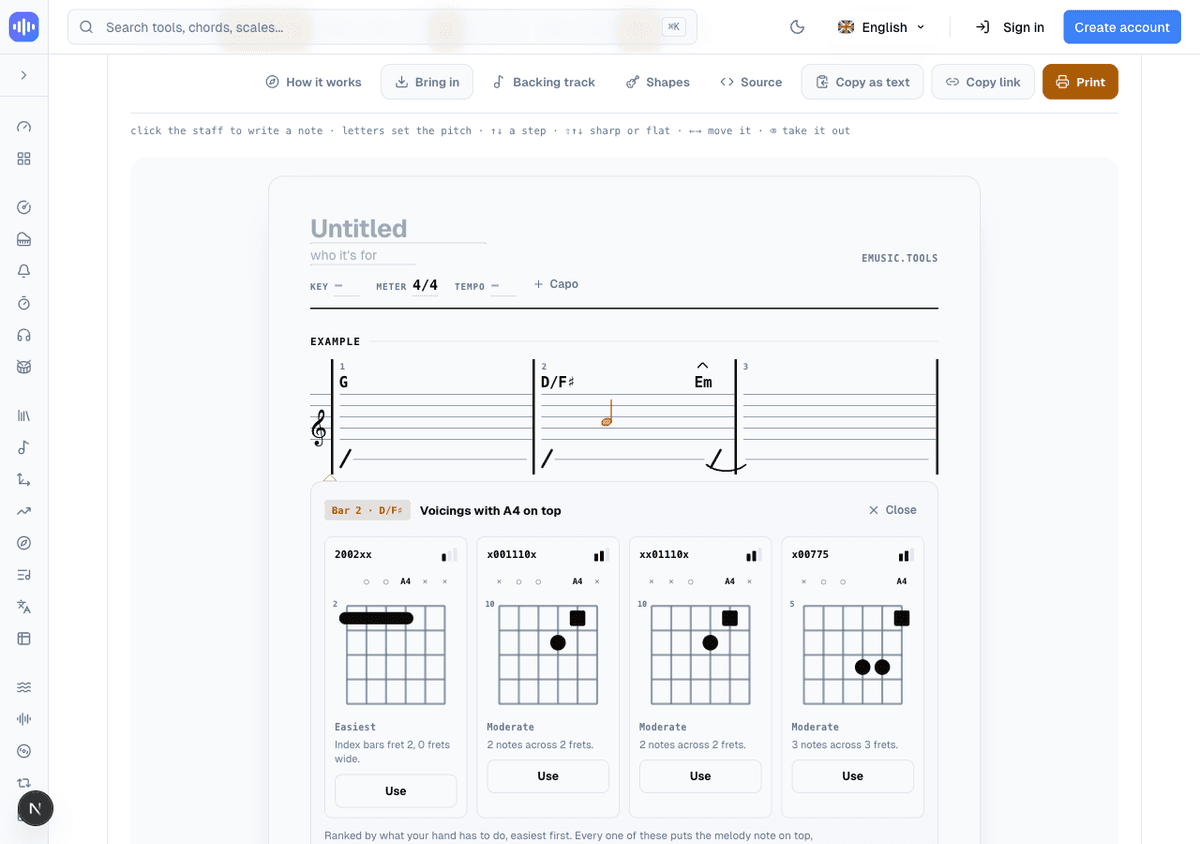
Select a note that lands over a chord and a rail opens underneath offering guitar voicings that put exactly that note on top, ranked by what the hand actually has to do rather than by a difficulty label: "Index bars fret 2, 0 frets wide" for the easy ones, "3 notes across 3 frets" for a stretch. None of it is coloured as a warning. The hardest voicing on the rail is still a voicing, just one that asks more of the hand.
The tune does not have to be typed. Upload a take in the Audio Editor, or separate the stems and open Practice, and press "Read the tune". The box tracks the pitch of the singing frame by frame, and the notes land here on the staff in lighter ink, under the same "Accept all" button as the chords. A separated vocal reads far better than a voice buried in a mix, so a separation is the better starting point, and the page tells you which one it used.
What it gets right is a held note in a clear register. What it gets wrong is a melisma, a scoop up into a note, and the occasional octave, so read the page before you trust it: correcting a note is one click on the staff. It writes no words at all. The syllables under the bars are yours to type, and so is everything the model could not hear. This is for a recording you made yourself, the same way the rest of the site is for practising with your own material.
Guitar shapes for the whole chart
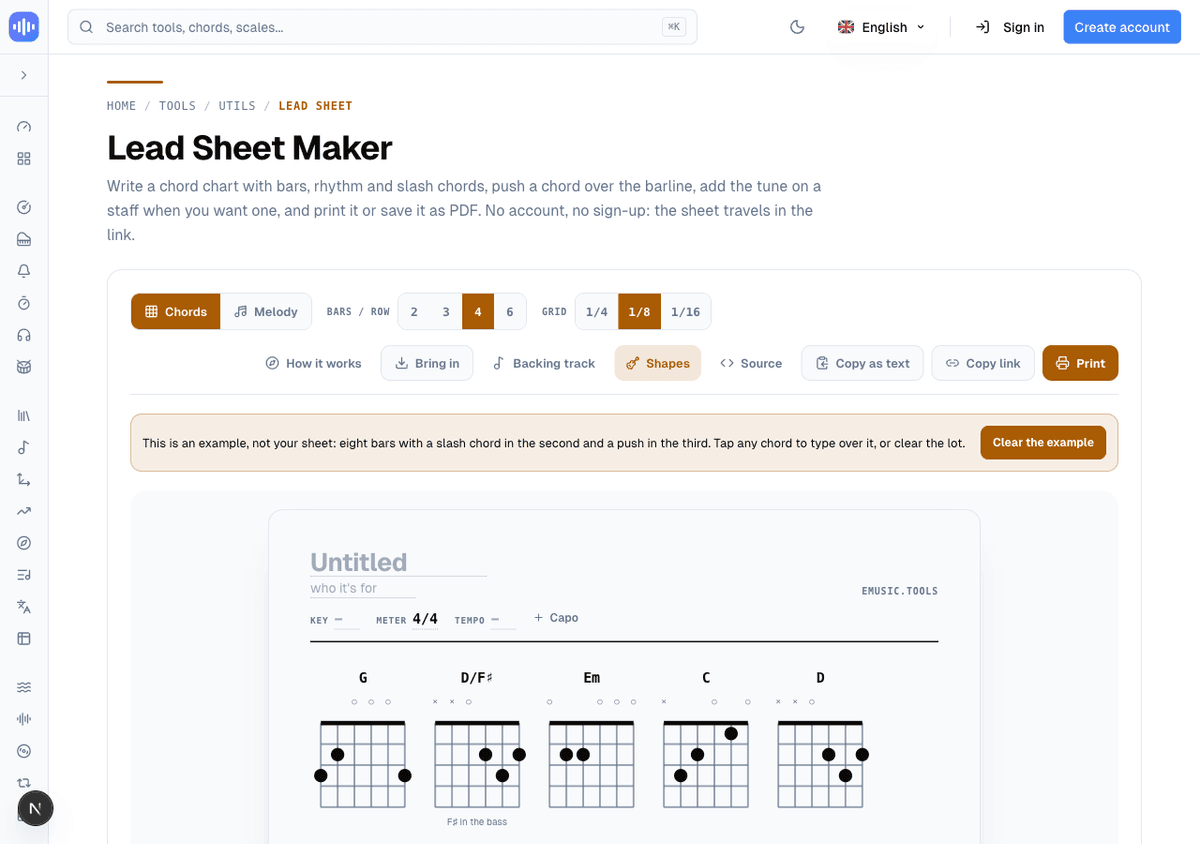
The Shapes button draws one diagram per chord on the chart, once each, in the order they're first played, pulled from the same chord library the Chord Transposer reads. A slash chord's diagram is labelled with its bass note directly under the fretboard, "F♯ in the bass" rather than a separate line of text. Up to ten shapes sit at the head of the printed chart; past ten, they move to a page of their own instead of shrinking to fit.
Bringing chords in from four other tools
The "Bring in" menu is one place for everything that can hand chords to this page. The Audio Editor and stem separation's practice screen both offer the same chord-per-beat analysis from a track you upload, arriving as a draft you correct rather than a finished chart. The Chord Transposer turns chords written over lyrics into bars the moment it sends them. Backing Tracks is the only two-way door: pull a progression in as bars, or, from the Export menu described below, send this chart out the same way.
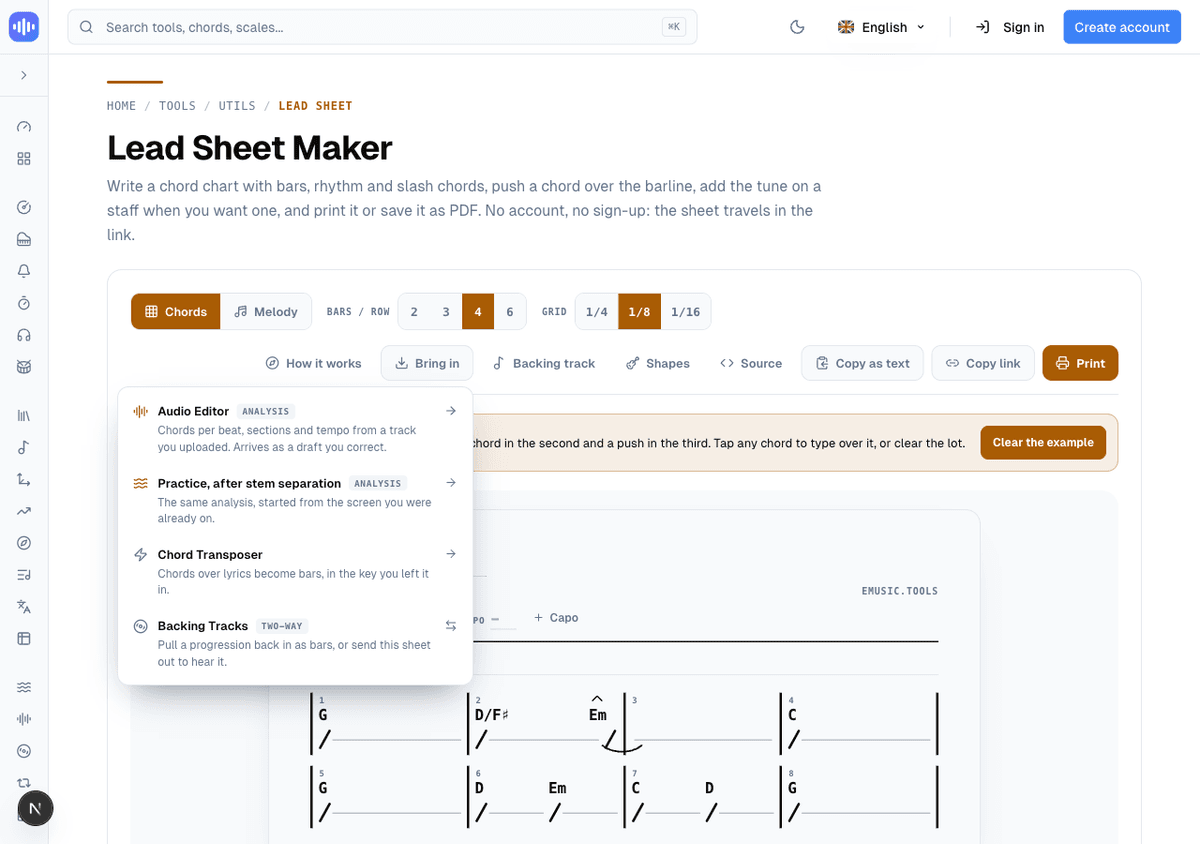
A row with material already waiting shows a small dot and imports it the moment you click; a row with nothing waiting is just a link to the tool that would make it, because there's no chart to bring in yet.
Five ways out, in one Export menu
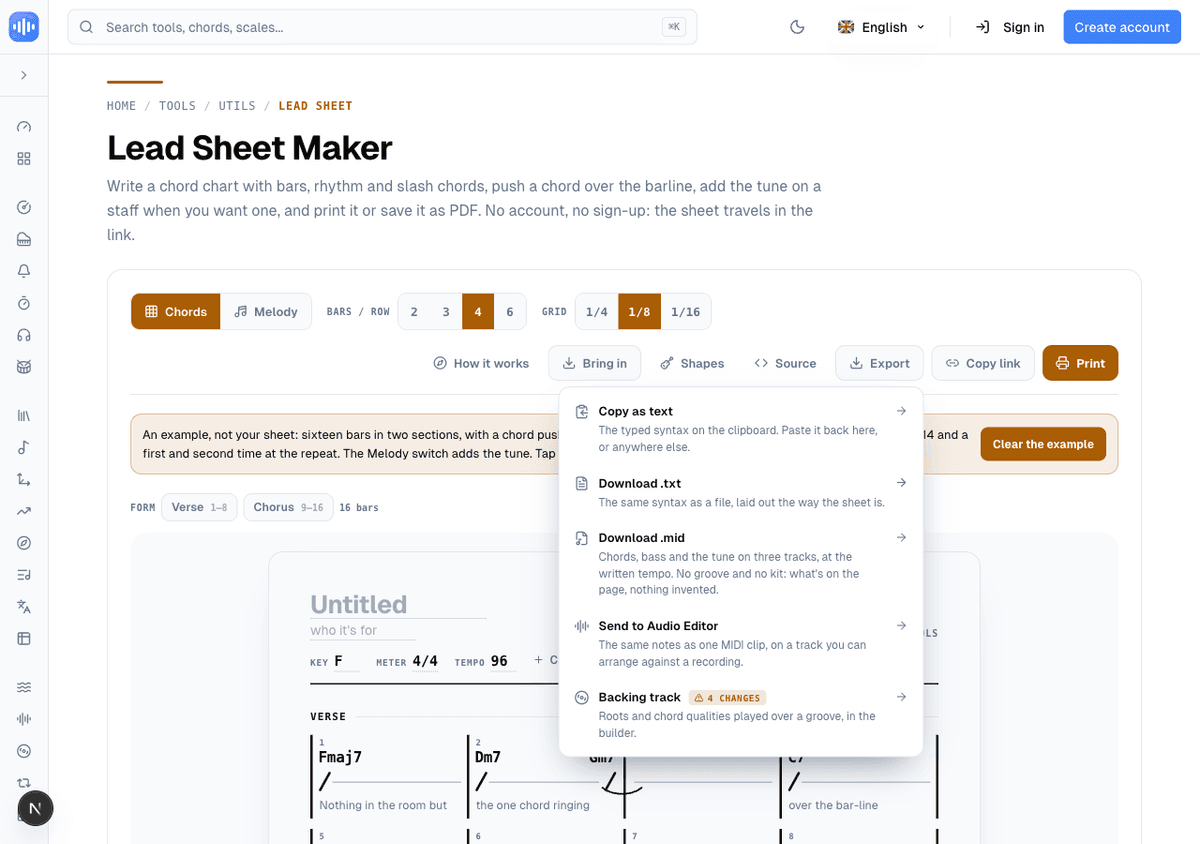
Every way to leave the page with something other than a link sits behind one "Export" button: copy the typed syntax, download it as a .txt file laid out the way the sheet is, download a .mid file with chords, bass and the tune on three separate tracks at the written tempo, send those same notes to the Audio Editor as one MIDI clip on its own track, or send the chart to Backing Tracks. Nothing in the MIDI file is invented: no groove, no kit, because the page doesn't have one to begin with, only what's actually written.
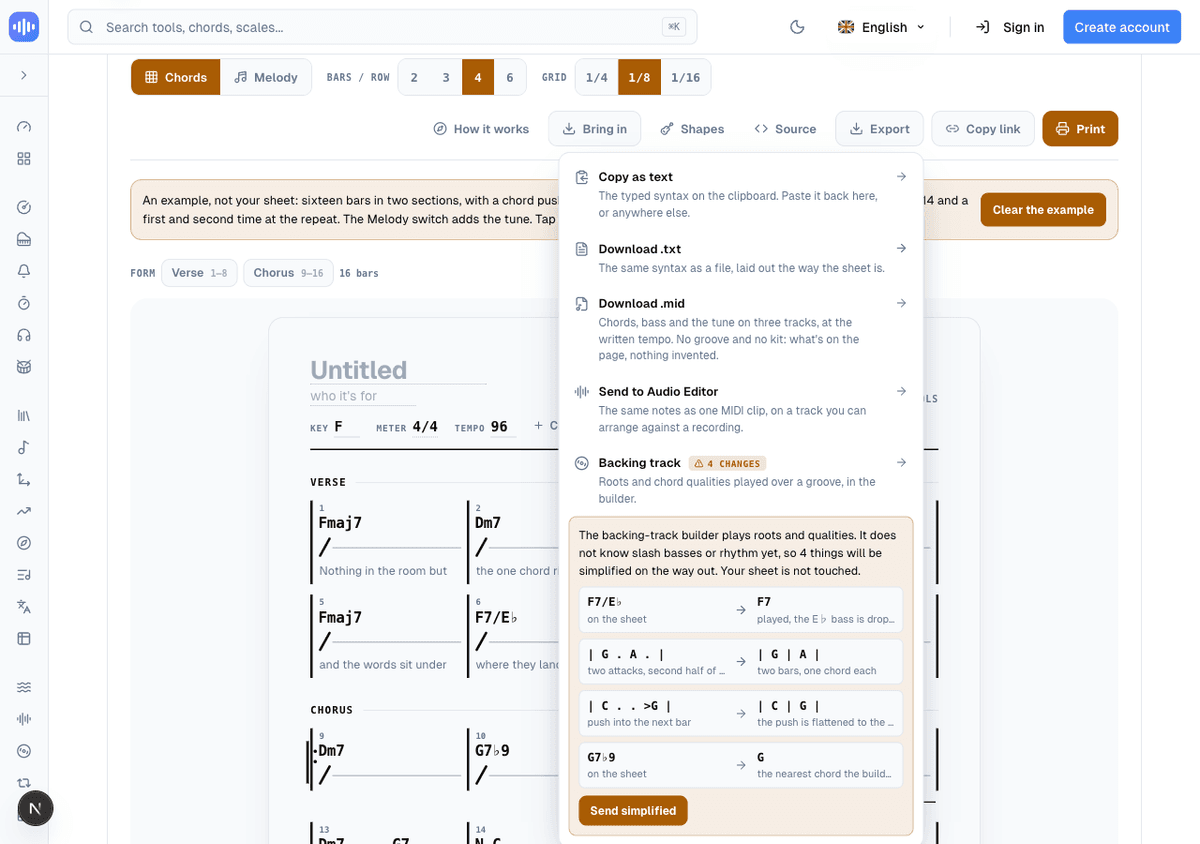
Backing Tracks plays roots and chord qualities on a grid of bars. It doesn't know slash basses or rhythm inside a bar yet, so a chart that uses those can't arrive whole. Rather than silently flatten it, the "Backing track" row in the Export menu opens a panel listing exactly what would change, each as a before and after: a slash chord loses its bass note, two attacks in one bar become two separate bars, a push is flattened onto the downbeat it was reaching past, and a chord quality the builder can't play is swapped for the nearest one it can. The chart itself is never touched; only the copy that goes out is simplified, and nothing leaves until "Send simplified" is clicked.
What a chord sheet cannot tell you
The "How it works" button opens a guided tour rather than a wall of documentation. Each chapter draws itself once and waits, covering one idea at a time: why a chord over a lyric only points at a syllable, how a chord belongs to a beat and not a word, how many times to hit it and where, what a push actually is, why a slash chord isn't the plain chord underneath it, why correcting is faster than typing, how silence has to be written down to happen at all, how the strip above the paper maps the form, how the chart travels as a link, and how it leaves as notes too, not only as paper. The last chapter hands you an actual bar and asks you to place a chord in it yourself.
Printing, and the link that is the only save button
Print goes straight to the browser's own dialog, on the same page you're already looking at, so "Save as PDF" produces exactly what was on screen rather than a second layout that might not match it. Copy link, kept on the toolbar rather than inside the Export menu, encodes the whole chart into the address bar. That's the entire storage layer this tool has: no account, and nothing kept on the server, so the link is the only save button there is.
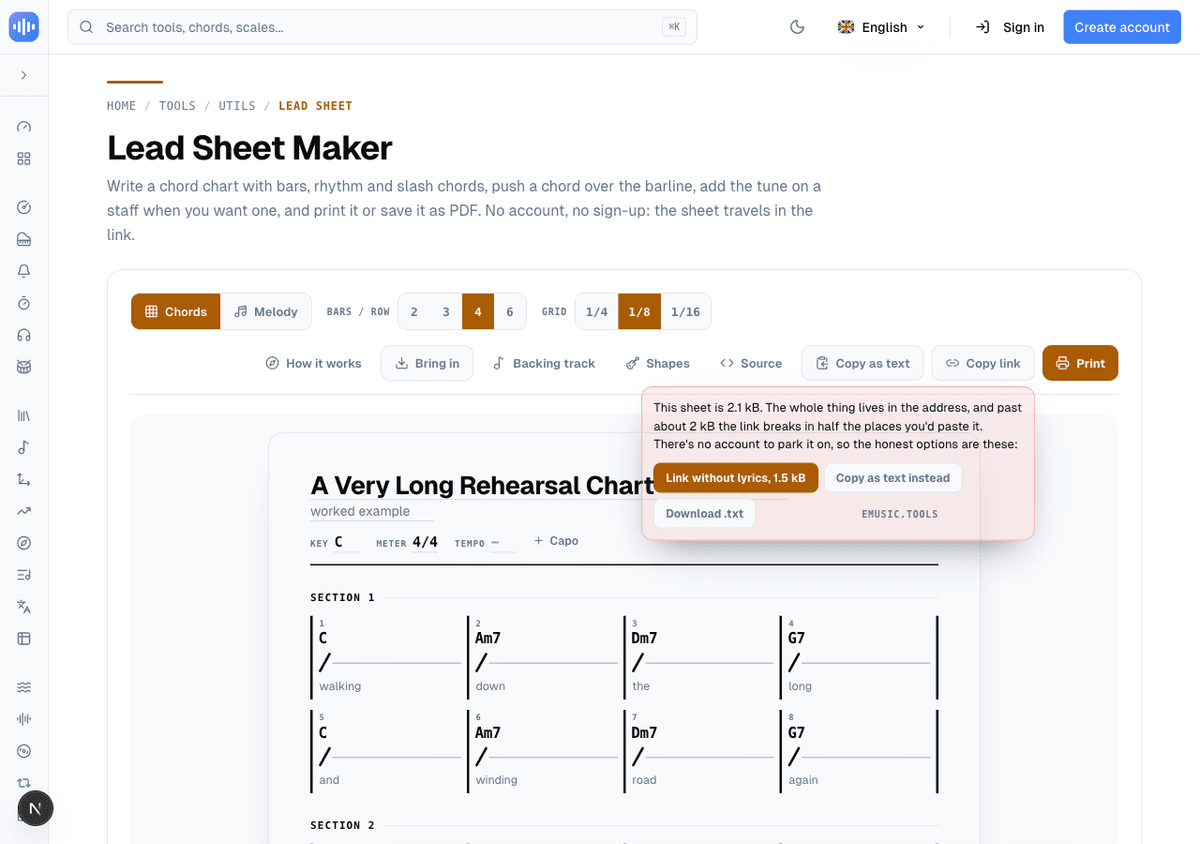
Past about two kilobytes, a link starts getting cut in half wherever a teacher would actually paste it, chat apps and mail clients included, so the tool says so honestly rather than truncating the chart without telling anyone. Dropping the lyrics is offered first, since it costs the most characters and the least in a rehearsal; copying the plain text or downloading a .txt file both carry the full chart regardless of size.
Every mark described here, from a held chord to a printed Fine, exists because a chord-and-lyric page can't hold it. Open the Lead Sheet Maker and the sixteen-bar example is still sitting there, ready to be typed over.


