


A looper does one thing: it records a few bars and plays them back over and over while you add more on top. A guitarist plays lead over their own chords with one; a singer stacks harmonies against a bass line that never gets tired. The browser looper does the same job with no pedal and no download, and your tracks stay on your computer (a named session, if you save one, sends a single mixdown to our server).
This is the five-minute version: a demo to listen to, one setting to check before you play, the first take, a second layer, the loop point and the export. All of it is in the free version.
Start with the demo, not the microphone
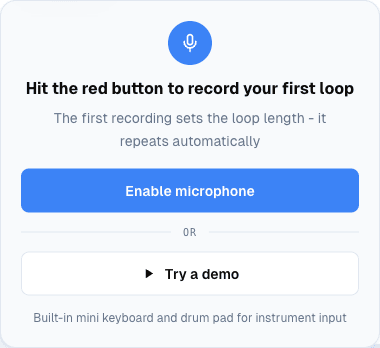
The looper opens with a card and two buttons. "Enable microphone" is the one you'll use later. "Try a demo" is the one to press first, because it shows you the whole idea in half a minute before you play a note.
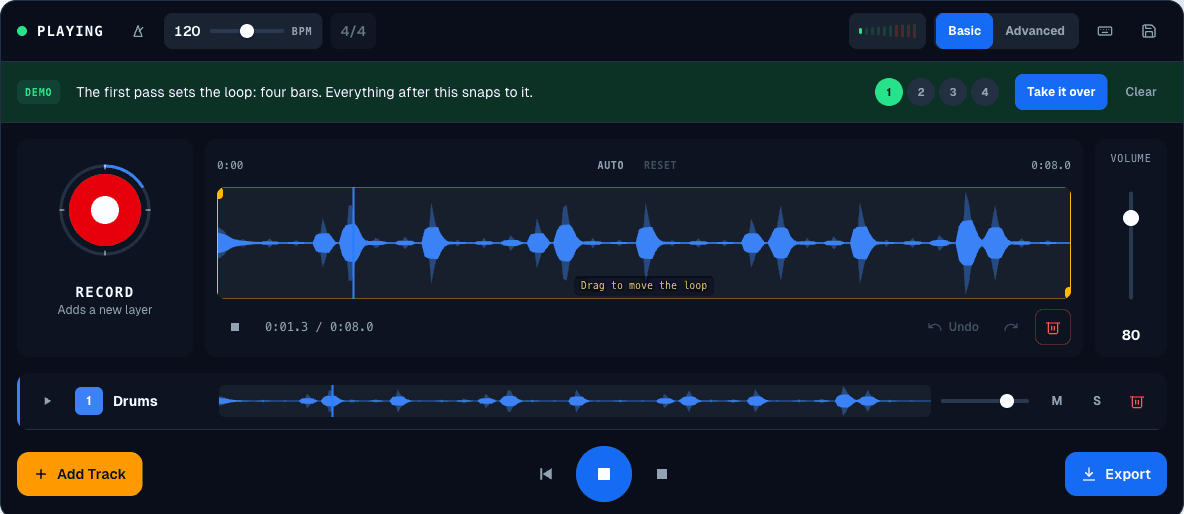
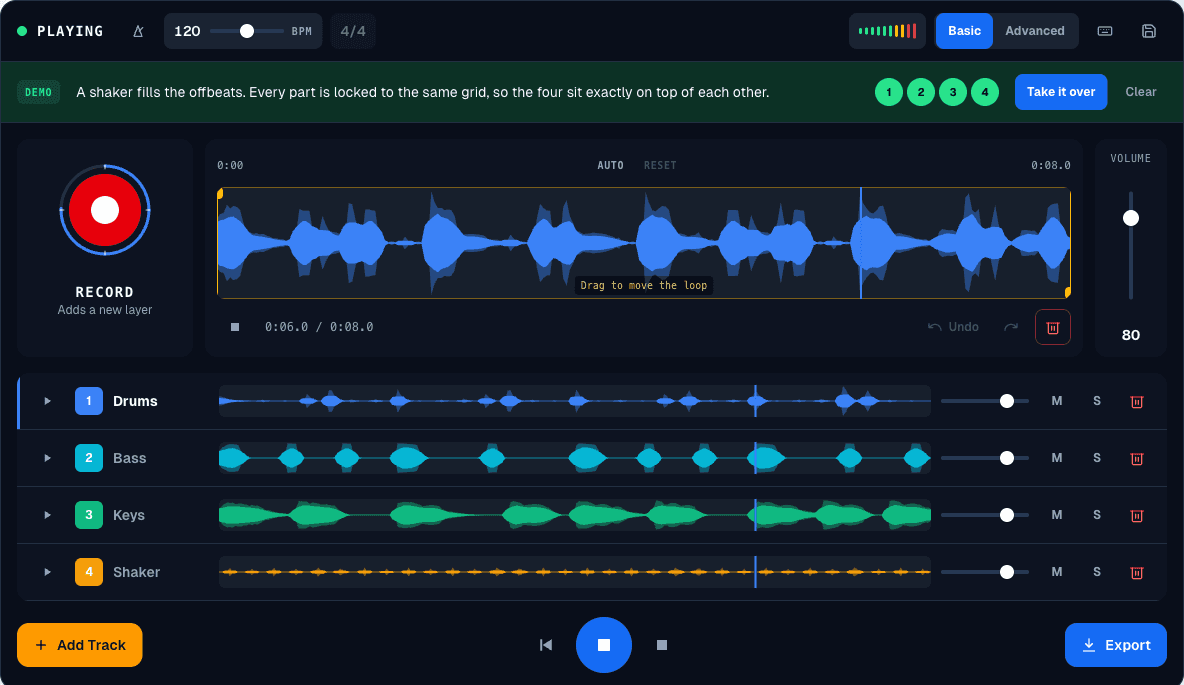
The demo lays down four parts, one per pass of the loop: drums first, then a bass line over an Am, F, C, G progression, then keys with a little reverb and delay, then rim, clap and a tom fill. The drum pads and keyboard under the tracks light up as each part plays. Every sound in the demo is on them, so you could play the whole thing yourself. A strip above the tracks tells you what just happened and lets you jump between the four steps. When it's done, "Take it over" hands you the four tracks as an ordinary session: mute the bass, solo the drums, record your own part on top.

Set the loop before you play
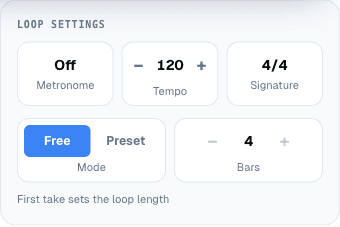
One decision is easier to make before the first take than after it. The time signature button cycles through 4/4, 3/4 and 6/8, and it locks the moment a loop exists. Change it first, or you'll be pressing it on a loop that's never going to change. The tempo control next to it runs from 60 to 180 BPM and drives the metronome and the count-in.
The loop settings card holds the other choice. In Free-form mode the length of your first recording becomes the length of the loop, which is how a pedal works. In Preset tempo mode you pick a number of bars and the first take stops itself when it gets there, which is the mode to use if you tend to stop late. Count-in isn't on that card. Out of the box it plays a bar of clicks before the first take, and you can turn it off or set it to "Every take" in Advanced mode. With Every take, later takes start at the top of the loop on their own, so you can hit Record with whichever hand is free.
Pick where the sound comes from
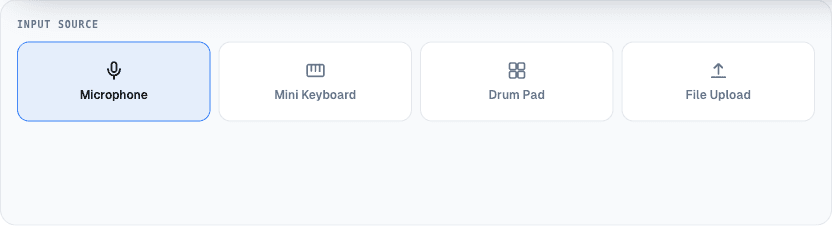
Four tiles, and you can switch between them from one take to the next. Microphone is a guitar, a voice, anything in the room. Mini Keyboard and Drum Pad are built in: thirteen keys played with A to K (W, E, T, Y and U for the sharps) and eight pads on the number keys, so you can build a drum-and-bass bed with no instrument at all. File Upload takes a WAV, MP3, OGG or FLAC and puts it on a track. The file stays on your device.
The first take sets the length
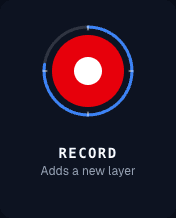
Press the red button, or Space. If count-in is on, you get a bar of clicks. Play your phrase, press it again, and the loop starts repeating at once. The label under the red button tells you what the next press will do: "Sets the loop length" before the first take, "Adds a new layer" after it.
Don't worry about stopping exactly on the beat. That's what the markers in the next section are for. Do worry about playing a phrase that ends where it began, because that's the one thing a loop can't fix.
Overdub: the second pass
With one track looping, the amber Add Track button adds an empty track and makes it the selected one. Press Record again and the new pass is written over the loop, at the loop's length, on its own track. In Basic mode a second take on the same track is layered on top of the first; a small ×2 next to the track's name counts the passes, and Undo takes back the last one. Advanced mode lists the passes in that track's Layers panel, where you can mute or delete each one on its own.
A track row in Basic mode has mute, solo and delete, plus a volume slider on a wider screen. Advanced mode adds a ⋮ button to every row that opens the rest: a tone control, reverb, delay and pan, and buttons to reverse or duplicate the track. The demo is the model here: four tracks, each with one job, panned so they don't sit on top of each other.

Advanced mode adds a Replace recording mode (the new pass swaps the track, and Undo brings the old one back), long takes that either fold every pass into the loop like a pedal or extend the track to a whole number of cycles, pitch shift of up to twelve semitones per track, and a tempo stretch for the whole loop.
Trim the loop point
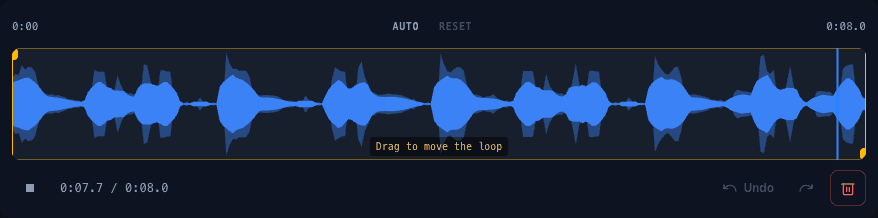
The lane in the console shows one cycle of the loop with a marker at each end. Drag them and the loop repeats between the markers instead, on every track. You can also drag across the lane to mark the part you want to repeat, then drag that window to move it. Auto snaps them to where the playing actually starts and ends, which fixes most "I stopped a beat late" recordings in one click. Reset puts them back. In Advanced mode the same markers can be pointed at a single track to trim it inside the loop.
Export, and what needs an account
The export button opens a panel under the console: the mix as a lossless WAV, the mix as a 320 kbps MP3, or every track as a separate stem, all in one ZIP or one track at a time. The Apply FX box decides whether the stems keep their effects. Exporting and saving a named session are the two things that ask you for a free account. Recording, layering and playback don't, and the looper autosaves your session in the browser either way, so a closed tab isn't a lost loop. Your tracks stay in the browser; saving a named session also sends one mixdown of the loop to our server, so the session's link in your workspace has something to play.

Latency, headphones and phones
The looper records through the Web Audio API, and the questions on the tool page are honest about what helps: wired headphones and a recent Chrome or Edge. The trouble is usually the speaker. If the loop plays out of the laptop and back into the microphone, every layer records the previous ones again. Headphones solve it. Playing a phone through its own speaker? Advanced mode has a "Phone speaker" switch that cancels the loop out of the microphone signal.
From a loop to a whole track
A loop is your own playing, repeated. The other half of practising is playing along with somebody else's recording, and that's the job of the stem separator: it splits a track into drums, bass, vocals and the rest, so you can mute the part you're learning and loop the bar that keeps catching you out. There's a link to it under the looper, and the looper suggests it on its own too: a window after two minutes on the page, never in the middle of a take, or a small card after your first export if that comes sooner.
That's every control that matters, and it fits in five minutes. The rest is playing: open the looper and press "Try a demo".
Cover photo: BOSS RC-3 Loop Station, by Auge=mit, CC BY-SA 3.0, via Wikimedia Commons, resized.


