


When you work with audio, applying effects is not the hard part. The real challenge is understanding what each control does and when to use it. Most people just click through presets until something "sounds good". The problem is that you don't really know why it works or how to recreate it. That's where the effects and their controls come in.
Presets: a starting point, not the answer
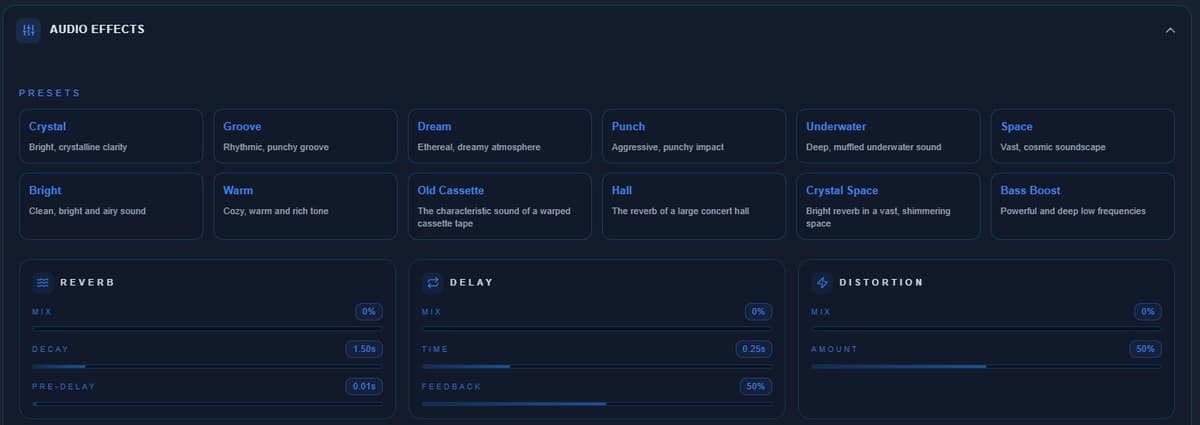
Presets are there to give you a quick reference. Some common ones:
- Crystal → clean and very defined sound
- Groove → more rhythm and punch
- Dream → soft, atmospheric feel
- Punch → aggressive and direct
- Underwater → muffled and filtered
- Space → wide and open sound
- Warm → fuller and smoother tone
- Vintage cassette → lo-fi, degraded texture
Real use:
- Testing ideas quickly
- Getting inspiration
- Moving in the right direction without starting from zero
But presets are not the goal. What matters is what you do after.

Reverb: placing sound in space
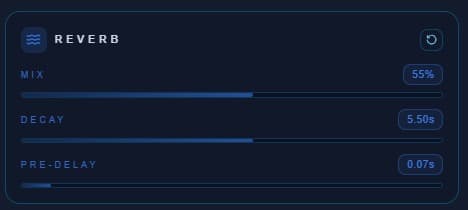
Reverb simulates the environment around the sound. Key controls:
- Mix → how much effect you add
- Decay → how long the tail lasts
- Pre-delay → how long it takes to start
Low reverb = close and direct. High reverb = distant or ambient. Too much and everything turns muddy.
Delay: controlled repetition
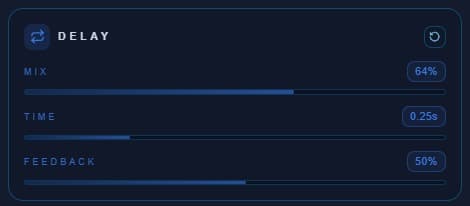
Delay repeats the signal over time. Controls:
- Time → gap between repeats
- Feedback → how many repeats you get
- Mix → effect level
Real use:
- Adding depth without clutter
- Creating rhythm
- Filling space without duplicating tracks
A well-set delay can elevate a simple vocal a lot.
Distortion: adding edge
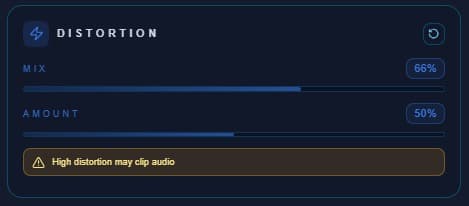
Distortion breaks the signal to give it more character.
Main control:
- Amount → how much the signal is clipped
Real use:
- Adding energy to guitars
- Roughing up clean digital sounds
- Making elements stand out in the mix
Too much can ruin the original sound.
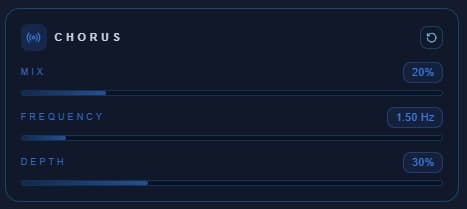
Chorus: making things bigger
Chorus slightly duplicates and detunes the signal.
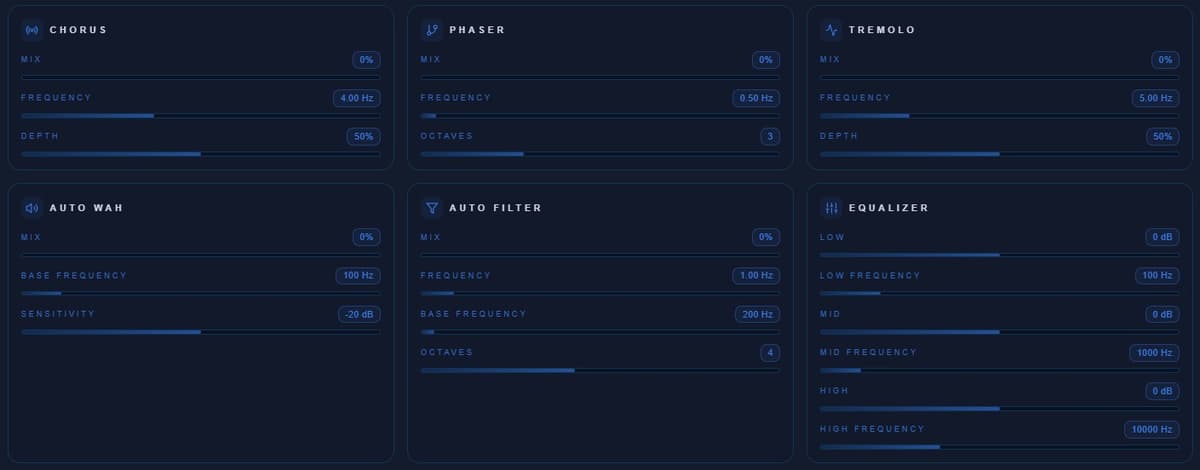
Controls:
- Rate → speed of the modulation
- Depth → intensity of the effect
- Mix → blend between dry and wet
Real use:
- Thickening guitars
- Widening vocals
- Adding stereo feel
Ideal when something feels too thin.
Phaser: subtle movement
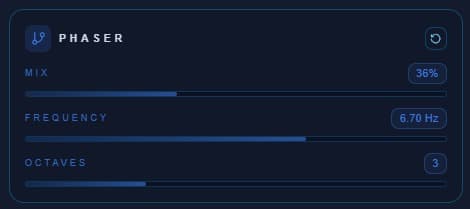
Phaser sweeps frequencies in a smooth way.
Controls:
- Rate → speed of the sweep
- Octaves → range of the effect
- Mix → blend between dry and wet
More subtle than chorus, but very useful for adding texture to pads or guitars.
Tremolo: volume movement
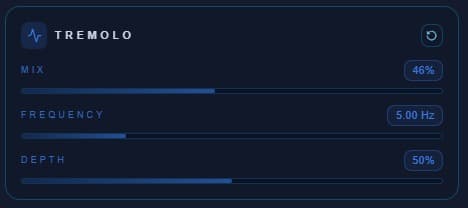
Tremolo modulates volume in a rhythmic way.
Controls:
- Rate → speed of the volume oscillation
- Depth → how much the volume varies
- Mix → blend between dry and wet
Real use:
- Creating pulse and movement
- Adding vintage character
- Introducing rhythm without changing the performance
Auto Wah: dynamic filtering
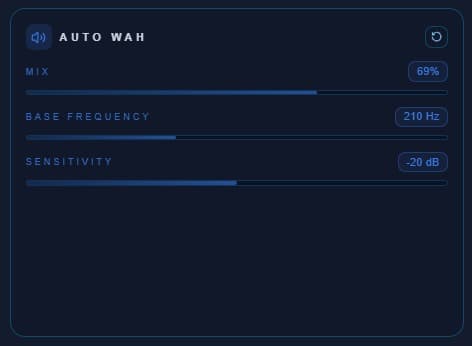
Auto wah moves a filter based on the input signal.
Controls:
- Base frequency → starting point of the filter
- Sensitivity → how the filter reacts to the signal
- Mix → blend between dry and wet
Real use:
- Funk and groove sounds
- Making parts feel more expressive
Highly dependent on how you play.
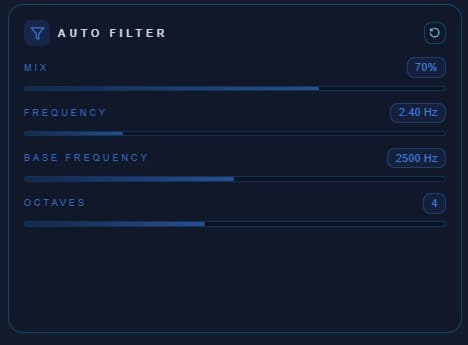
Auto Filter: shaping the sound
This effect moves a filter continuously.
Controls:
- Frequency → speed of the filter movement
- Base frequency → center point of the filter
- Octaves → range of the sweep
- Mix → blend between dry and wet
Real use:
- Transitions
- Electronic effects
- Shaping or cleaning parts of the sound
EQ: where everything is defined
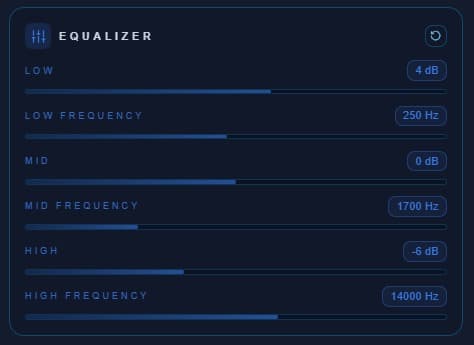
EQ is probably the most important tool.
Basic controls:
- Low → bass frequencies
- Mid → midrange frequencies
- High → treble frequencies
- Reference frequencies → precise band targeting
Real use:
- Removing unwanted frequencies
- Highlighting what matters
- Creating space between tracks
If something sounds off, it's often not missing effects. It's too many frequencies.
Combining effects
This is where things start to make sense. Examples:
- Reverb + delay → depth without losing clarity
- EQ + distortion → controlled character
- Chorus + reverb → wide and immersive sound
The key is not using many effects. It's using them with purpose.
Conclusion
Effects are not there just to decorate sound. They help you place audio in space, shape its character and improve the mix. Once you understand the controls, you stop guessing and start making decisions. That's when things really start to sound right.


